

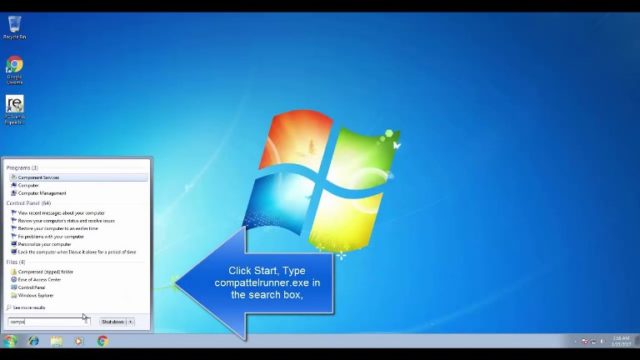
Whether you have a well-worn Windows device or a brand-new one, you need to make sure your device is safe, secure, and also has the ability to install the latest updates. With files such as CompatTelRunner.exe, you have all you need to improve the quality of services your Windows devices offer to you, ensure you installed the right version of Windows OS, and even have your computer diagnosed to determine compatibility issues.
With that said, we’ll like to establish that the service has its own problems, which are the reasons you see piles of negative reviews online about it. Some of these problems revolve around disk usage issues, high CPU, and many more. In this article, we will present to you what CompatTelrunner really is and how to fix its high CPU and disk usage issues.
What is CompatTelRunner.exe?
CompatTelRunner.exe is a part of the services rendered by Microsoft that ensures your system is upgraded to the latest OS version as well as other service pack upgrades. This Windows system file, in addition, is also designed in a way that it tests the compatibility of your software and allows Windows programs and OS search for and download updates.
Another function of Microsoft’s CompatTelRunner.exe is that it is used to carry out diagnostics on your computer to rectify compatibility issues when you make an installation. This Telemetry file is located in your C:\Windows\System32 folder by default and it retrieves program telemetry information if opted-in to the Microsoft Customer Experience Improvement Program.
As attested by Microsoft, CompatTelRunner makes up a Windows Update, specifically the KB2977759 one, which does the work of the Compatibility update for Windows 7 RTM (Release to Manufacturer). It is enabled by default and it gets installed every time you download a new update on your system. Since it is part of the required Windows services that need to be your device, that is the reason you can only disable the file in your Task Scheduler.
How to Fix CompatTelRunner High CPU and Disk Usage Issues
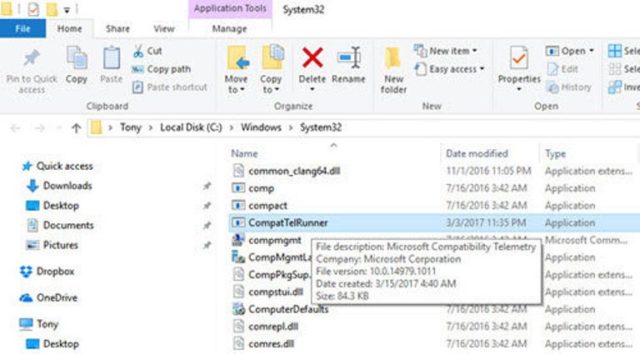
Many users often complain about CompatTelRunner.exe taking up a lot of their computer resources especially disk usage and CPU. Truth is, it is not compulsory you must have this process on your device and it is possible to stop it from running on your Windows computer. Inasmuch as allowing it to run on your computer gives Microsoft the green light to diagnose and check compatibilities, some users are of the opinion that multiple CompatTelRunner.exe processes usually appear in Windows Task Manager while running. This, they claim, consume over 60% of the CPU or Disk Usage resource.
If the CompatTelRunner.exe poses a serious privacy concern to you, you can fix it using any of the methods mentioned below:
Solution 1: Disable CompatTelRunner.exe from the Task Scheduler
Doing this, according to many users, prevents the system from working slowly. It also fixes the network, high CPU, and disk issues and enhances the computer’s speed.
To carry out this task, follow the steps below:
1. Start by launching the Run application by pressing Windows Logo Key + R
2. Enter taskschd,msc in the dialogue box and press Enter to open up the Task Scheduler.
3. Go to the left area of the window, expand Task Scheduler Library > Microsoft > Windows and then search for Application Experience. Once you see it, click on it.
4. The next move is to right-click on the Microsoft Compatibility Appraiser and then click on Disable.
5. You can now restart your computer to see if your system is working fine. If the issue is not solved, try any of the solutions listed below.
Solution 2: Try Using Registry Editor
The registry editor is another option to try while trying to fix the error. Here are the simple steps you need to follow:
1. Start by launching the Run application by pressing Windows Logo Key + R
2. Input “regedit” in the dialogue box and click on OK to proceed.
3. Wait for it, you will receive a pop-up from User Account Control asking for your permission; simply click on OK to continue.
4. Navigate to HKEY_LOCAL_MACHINE > SOFTWARE > Policies > Microsoft > Windows > Data Collection and right-click on Data Collection. Afterward, choose New > DWORD (32-bit) Value.
5. Rename the new value ‘Allow Telemetry’ and click twice on Allow Telemetry.
6. You can now set the Value Data to 0 (zero).
7. Click OK and restart your computer.
Solution 3: Delete CompatTelRunner.exe as an Administrator
If you are really sure you don’t need this Microsoft service, another way you can get rid of it from your computer is by deleting it with administrator authority. Though this method is a little bit lengthy, it is known to have fixed disk and high CPU issues for many users.
To begin:
1. You need to log in to your computer as an administrator.
2. Press Windows Logo Key + R to ring up the Run application.
3. Type “C:WindowsSystem32” in the dialogue box and then press Enter.
4. Once you see the folder, search for another folder called exe. Quickly right-click on it when you see it and then select Properties.
5. Click your way to the Security tab and click on the Advanced button.
6. Go to the Owner tab, search for the Edit button and click on it.
7. Choose the owner as Administrators and then select the Administrators option. Click on Apply and then save it by clicking on OK.
8. After doing that, you will receive a notification that reads, “…you will need to reopen this object…”. What you need to do at this point is to close all the open Properties windows first, after which you can click on OK to move on.
9. Once more, right-click on the folder labeled exe and choose Properties.
10. Go to the Security tab and click on the Advanced button
11. The next step is to click on the Permissions tab. From the list that appears, select the account you have been using on your device and click on Edit.
12. Choose the user account you’ve been making use of and check the box close to Full Control. You can now save changes by clicking on OK.
13. At this point, you have full control over the folder and you can now go ahead to delete it.
14. After deleting it, restart your computer to verify if the problem has been solved.
See Also: Straight Talk Phone and Data Plans, Login, APN Setting, Activation
Solution 4: Disable Microsoft Compatibility Telemetry
Follow the instructions below to disable Microsoft Compatibility Telemetry.
1. Hold the Windows Logo Key + R to launch the Run application.
2. Enter “msc” in the dialogue box and click OK.
3. Once the Local Group Policy Editor window comes up and gets up; follow Computer Configuration > Administrative Templates > Windows Components > Data Collection and Preview Build. Simply double-click on Allow Telemetry.
4. Navigate to the box next to Disabled, click on it and then on OK.
5. Restart your computer immediately and then open the Task Manager and find out if CompatTelRunner.exe is still taking up a high amount of disk usage and CPU.
If none of the solutions outlined above couldn’t resolve the issue for you, we recommend you use the Reimage Repair Tool which can replace missing and corrupt files and also scan the repositories.
