

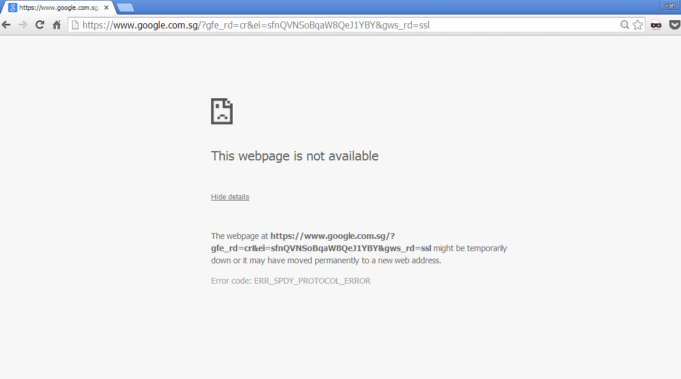
Google Chrome is arguably the best web browser currently available. Initially, this high-end browser was only applicable to the windows platform. Thanks to its highly impressive features, it was subsequently ported to other platforms including macOS, Android, Linux as well as iOS. Some of the features that make Chrome the most preferred browser include improved security, improved performance, simplicity, appealing apps, availability of extensions and Add-ons as well as easy migration.
Despite these incredible features and overall functionality, Chrome is sometimes characterized by a particular problem. If you may have noticed, the ERR-SPDY-PROTOCOL-ERROR only affects the Chrome internet browser. You would agree with me that the best place to start when trying to fix computer-related errors is to know and understand their causes. Of course, this equally applies when it comes to solving this type of error.
What is the meaning of the error message: This Webpage is not available ERR-SPDY-PROTOCOL-ERROR in Chrome?
As we previously mentioned, this particular error only affects those who use Google Chrome as their designated Internet web browser. It is an error in Chrome which can be experienced irrespective of whether you are using VPN or not. It is critical to mention that this error does not always affect all sites. Quite often, it affects those trying to access Google-related sites including Blogger, Gmail and perhaps YouTube. Very few individuals have experienced this error when trying to visit other websites not related to Google such as Wikipedia and Tumblr.
How to fix this type of error
There are various ways of solving this particular issue and we are going to tackle all the possible ways of combating the issue. Most experts will recommend reloading the web page. Even though this may seem like a simple fix, it is actually the easiest and the fastest way to solve this particular error. If even after reloading the pages you still happen to experience the error, then we recommend closing down and restarting your Chrome. However, it is critical to mention that sometimes, this alone will never solve the issue. This is because you’ll be needed to clear the cache immediately after restarting your browser.
There are a series of procedures you’ll need to follow in order to clear the cache from Google Chrome. If you are using Chrome from your PC, kindly follow the simple steps provided below.
Restart Chrome. Next, identify the more icon in your browser’s toolbar. If you didn’t know, this is an icon featuring three vertical spots. Click this particular icon.
After, access more tools and select the clear browsing data option. Done successfully, more options will be displayed. However, you’ll need to concentrate on two options including the one for cached files and images and the option for cookies, plug-in data, and other sites.
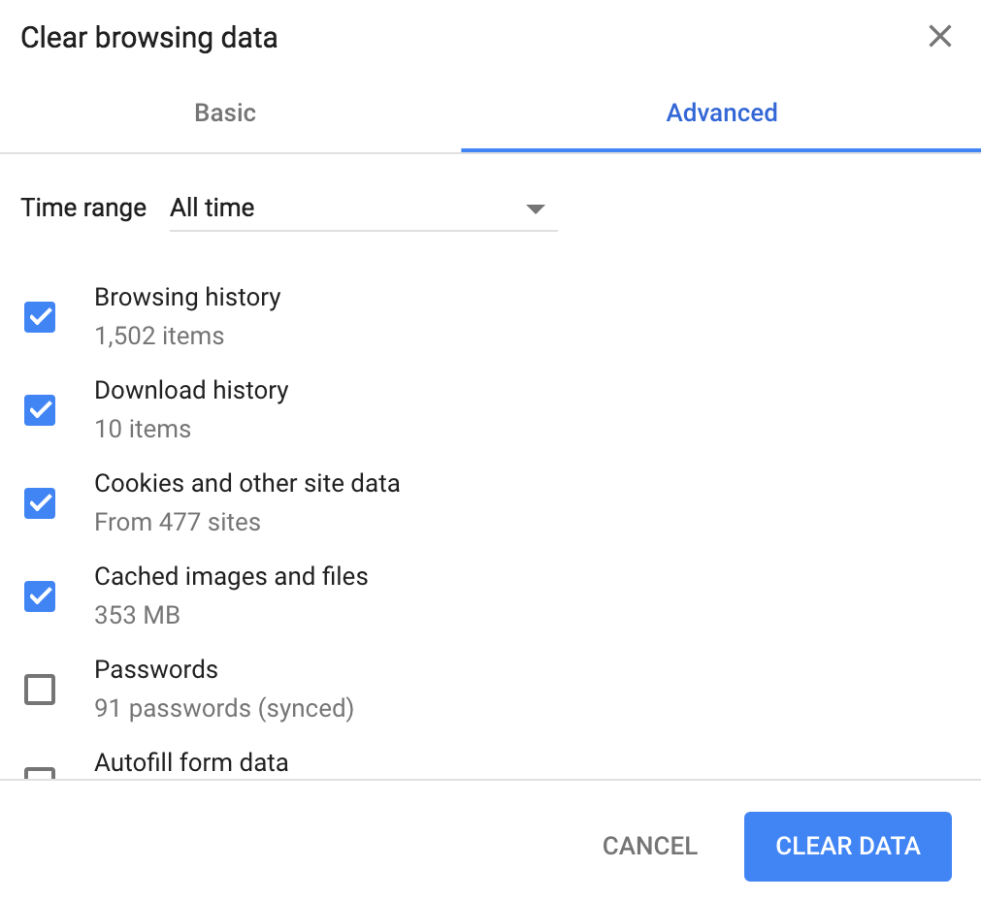
After this, you’ll make a decision regarding the amount of data you would want to delete. To execute this task, go to the top menu and select how old you would want your deleted data to be. If you plan to do away with everything (delete everything), you’ll have to select the following option; the beginning of time. Lastly, select clear browsing data.
After successfully following these simple steps, you should then visit the site that previously displayed the error message earlier. If you usually use Chrome from an iOS device, the procedure is somehow different and includes:
- Restart Chrome. Find the so-called more icon in the toolbar of your browser and click on that icon. Next, select the history button since it will allow other options to display.
- From all the displayed options, tap on CLEAR BROWSING DATA. After this, more options will appear but only check two specific options including the one for cookies, plug-in data, and other web pages as well as the one for cached files and images.
- Just like in our previous procedure, you will have to determine the amount of data you want to delete. To achieve this, go to the top menu and select how old you want your deleted data to be. Equally, if you would want to delete everything just select the option; the beginning of time. Lastly, click on clear browsing data. It should be noted that the above steps for iOS devices apply to users of Android mobile devices.
On most occasions, the two steps described above will certainly help solve this problem. However, there are still chances that the issue will persist even after clearing the cache and reloading your web page. If you have installed an anti-virus in your PC, it is highly advisable that you examine whether your anti-virus is responsible for the problem or not. Anti-virus apps are known to block certain web pages. You’ll have to instruct your virus protection application to stop blocking the site using the simple steps available.
After you have established that your anti-virus program is not responsible, experts recommend clearing your Chrome cookies as the last resort. The process involved in clearing the cookies have been provided below in these detailed steps. Proceed as follows.
- Launch your Google Chrome. Next, key in the following address in the URL bar: chrome://settings and press the ENTER key.
- Allow the settings page to load. After that, scroll down until you access the show advanced settings option and select it. In the privacy section, identify the clear browsing data and select it.
- A variety of options will be displayed but you’ll only have to pay attention to two of them. These include the cached files and images and the cookies and other website plug-ins data options.
- The next step will involve deleting all the cookies. To achieve this, set it to eliminate the following items option to FROM THE BEGINNING OF TIME. Finally, select the clear browsing data option.
We have given you the various steps you’ll have to follow in order to solve this error. They are straightforward and extremely effective. Other notable solutions include updating your Google Chrome browser and perhaps using Chrome’s Incognito Mode.
