

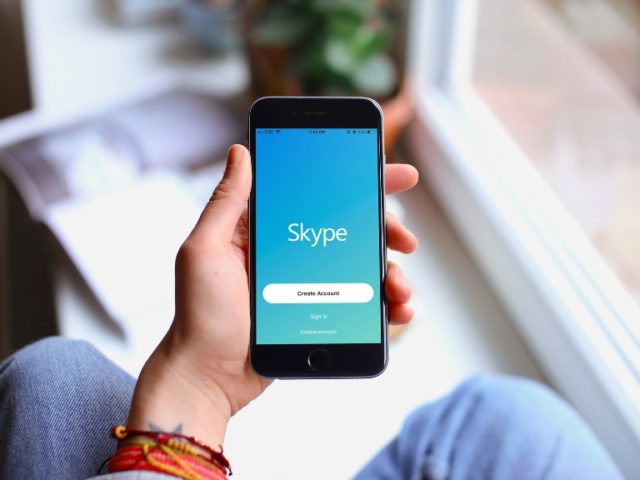
There are several online communication service providers one can easily find in the competitive market. Some of them include Roundee, Output Messanger, Jive, Slack, Join.me, ShoreTel Sky, and of course, Skype, among several others. One of the main reasons Skype has grown to become one of the world’s most popular software is that it has extremely flexible pricing, it is a good choice for large corporations, small businesses, and even individuals.
For many internet users, Skype is the perfect communication system for business due to its communication capabilities and free video chat. The software is touted as a pioneer in the industry, having crossed traditional communication boundaries many years ago. The VoIP service was created in the year 2003 – a time when there was a less technically Internet calling. And after passing through many hands a couple of times, Microsoft eventually acquired it in the year 2011.
What Is Skype?
Skype is a web-based communication software which offers users the platform to chat, make international calls, video chat, and even send texts to people via the web. Considered as one of the amazing VoIP solutions providers around, Skype offers other functions such as group video conferencing, collaboration functionalities like image and document sharing as well as instant messaging.
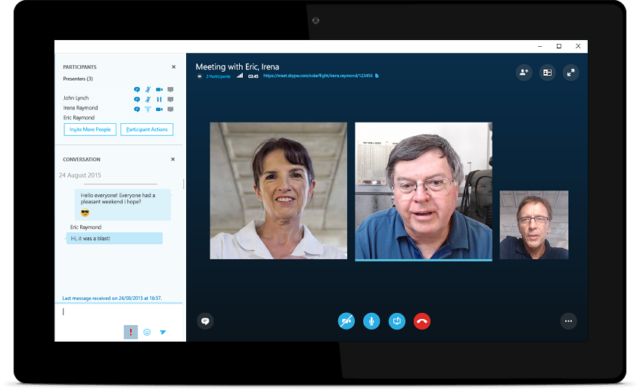
With its conference call, up to 250 people can hold a conference meeting from the comforts of their home or without stepping out from their desks. Another key feature of the software is that it works on all devices – be it a computer, tablet, or smartphone. Although Skype has a limited feature set, it is easy to install, it links up and makes communication between persons, offices, and groups very interesting, productive, and affordable.
So, in a nutshell, Skype avails people the platform to do the following: send texts (SMS), forward calls, undertake group screen sharing, one-to-one video calls, instant messaging, voice messages, video messaging, group calls, send files, calls mobile numbers and landlines, make group video calls, Skype to Skype calls, send contacts, do screen sharing, as well as Caller ID. It is very easy to install and it doesn’t require much learning curve when it comes to its navigation.
Is Skype Really Free?
Yes, Skype is a free communication service provider. Skype to Skype calls are free but if you are using premium features such as SMS texts, voice mail, or if you want to make a call to a landline, cellular phones, or outside of Skype, then you need to pay. Interestingly, Skype’s price tag is among the cheapest in the market and this is the reason it has won many businesses over.
The software’s business features and functionalities are priced at $2 per user, per month. Its paid service features more reliable security via encryption measures and strong authentication, business conferencing for close to 250 people, consolidation with many third-party business apps, as well as compatibility with Microsoft Office tools like Powerpoint, MS Word, Outlook, etc.
If you are using Skype, the only qualification for calls to be free is that you and the receiver must be on Skype. Yes, the brand may not be the cheapest VoIP service around, but it does boast good quality communication and has proved to be the most inexpensive communication provider for VoIP services. It brings on board all functionality expected from a renowned provider.
Take a look at what Skype offers when it comes to pricing.
As Regards business offers, the tool boasts the following features:
1. Powerful productivity with Office.
2. Secure communication lines through strong encryption and authentication.
3. Online business meetings for close to 250 people.
Their Premium plans have more advanced features and here’s a breakdown of the offers.
A.) Office 365 Business Essentials: This package will cost $5.00 per user, per month. It boasts the following:
1. Email with 50 GB mailbox per user.
2. Online Plan 2 features.
3. 1 TB file storage and sharing per user.
4. Online versions of Office
B.) Office 365 Business Premium: If you are interested in this package, you will need to pay $12.50 per month for each user to have access to the following:
1. Fully installed Office applications on Mac/PC.
2. Office applications on phones and tablets.
3. Office 365 Business Essential features.
C.) Online Plan 2: This one is specially designed for business online meetings. It is priced at $5.50 per user/per month and has the following features:
1. Audio calling and group HD video for up to 250 people.
2. Enterprise-level technical phone support.
3. Presence and IM during and outside of meetings.
4. Join on any device — phone, tablet, or PC/Mac.
Do you know that you can decide to pay for the minutes you consume or try their subscription plans for international calls for a specific area on Skype? The tool also offers unlimited calls to sixty-three countries at a rate cheaper than $15 per month – that is, if you want a wider reach. Now you know why expenses are so minimal on Skype, as some calls even cost one cent per minute.
How To Login To Skype
Before you can use this communication software, you need to create an account first on their website or you can use your Facebook or Microsoft account instead of creating a new Skype account.
To create a new account, follow the steps below:
1. Go to Skype sign up page.
2. Input your name and email address.
3. Select the language you’d like Skype to use.
4. Pick a Skype name.
5. Choose a memorable password. It must be between 6 to 20 numbers or letters.
6. Indicate if you want to get emails from Skype.
7. Enter the numbers and letters in the image in the provided spaces.
8. Lastly, click the “I Agree – Continue” button.
Now, you have successfully created an account. It’s time to log in and this is very easy to do. You can follow the steps below:
1. Open Skype
2. Choose whether you want to run the app with your Microsoft or Skype account
3. Enter your username (for Skype) or Microsoft email and password.
4. Click the Sign In button.
How To Get Your Caller ID
Skype caller ID makes it easy for you to connect with your clients, friends, and family. When you set up your caller ID, it makes it easy for people to recognize you when you call.
Here’s how to get your Caller ID:
1. Sign in to Skype.
2. Click on the “Caller ID” tab and input your mobile number. Once this is done, the number you entered will automatically be your phone number identifier and whenever you make a call from Skype, it will be shown to people receiving your call.
3. You will receive a text from Skype detailing how you will set up and confirm your Caller ID.
See Also: What is Frostwire Plus? Features, Download, Is It Safe And Legal?
How To Delete Your Skype Account
Unlike other communication service applications, it is very difficult to fully delete one’s account on Skype, but you can deactivate your account by removing all private information so that it won’t be linked to you when searches are made or you appear in the Skype listing. To begin:
1. Launch a web browser and sign in to your Skype account.
2. Navigate to your account settings. Then move down to the bottom of the webpage and click Account Settings which is located under the Settings and Preferences heading.
3. Click the Unlink option (if you linked your Microsoft account to your Skype). But if you didn’t, kindly jump to step 5.
4. You will receive a confirmation message asking you to confirm your action. Click Continue to unlink your Skype account from your Microsoft account.
Note: You may get signed out after unliking your account. In such case, sign in again to continue with the account deletion process.
5. In your Skype account settings on the web, cancel any recurring payments or a Skype subscription. Simply click the subscription you want to cancel to continue.
6. To confirm your subscription cancellation, click “Thanks but no thanks, I still want to cancel.” It is also at this point that you can request for a refund for any unused Skype subscriptions. You can complete the online Cancellation and Refund form or reach out to their customer support via live chat.
7. It is important that cancel your Skype number – that is, if you bought a Skype number where people can reach you. To do this, go to the Manage Features area and click Skype Number, then Settings and finally the Cancel Skype Number option. Also, note that you cannot apply for a refund for a canceled Skype Number.
8. Go ahead to disable the Auto-Recharge feature if you do top up your Skype credit automatically using recurring payments. You can get this solved by going to the Account Details section. Once you are there, click Billing & Payments and then click Disable under the Auto-Recharge tab.
9. You can now reach out to the customer service and tell them you’d like to delete your Skype account.
