
Quick Answer
Microsoft Publisher is a desktop publishing software that allows users to create a wide range of publications that include business cards, greeting cards, calendars, etc, using page layout and design skills on their personal computers.
American multinational technology company, Microsoft Corporation, has been able to maintain relevance in the tech industry for so many years by having hands in both software and hardware manufacturing, with the former, being the main focus and bigger revenue stream of the company.
Microsoft, which was founded in 1975, was in 2016 found to be the world’s largest software maker in terms of revenue. Its software products, which include the Microsoft Windows operating systems, Microsoft Office suite, Internet Explorer and Edge web browsers, have become very popular among consumers, largely due to its ease of use and functionality on other operating systems. Microsoft Publisher, which is the focus of this write up, is one of the components of the Microsoft Office suite, along with its other more popular components like Microsoft Word, Microsoft Excel, and Microsoft PowerPoint.
What is Microsoft Publisher?
Microsoft Publisher is a desktop publishing software and application that is used to create a variety of publications, from business cards to magazines, and newsletters, with the use of page layout and design. The software, which has been described by its manufacturers as an easy to use and less expensive alternative to other desktop publishing applications, has been found to be very useful to users who do not have specific knowledge on how to create publications but can still follow instructions and navigate tools to create something as specifically intended.
The other popular Microsoft Office suite component, Microsoft Word, has been compared to Microsoft Publisher since they can somewhat both serve the same function, most especially because they share the same interface and common tools that enable you to type text, format it and import images to a document. However, Publisher has a better advantage over Word because it works more like an image editing program than Word does. On Word, you can’t select shapes and graphics and drag them to precise locations within your document, which will make it difficult for making catalogs, or any other documents that require intricate layouts and graphics.
Uses
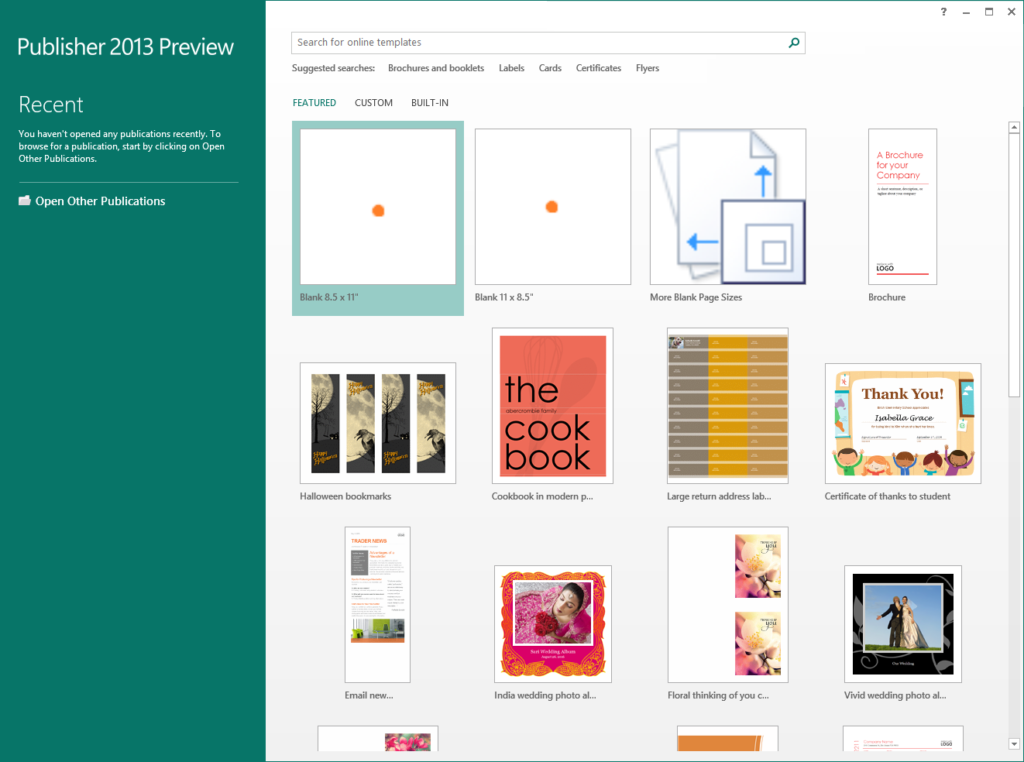
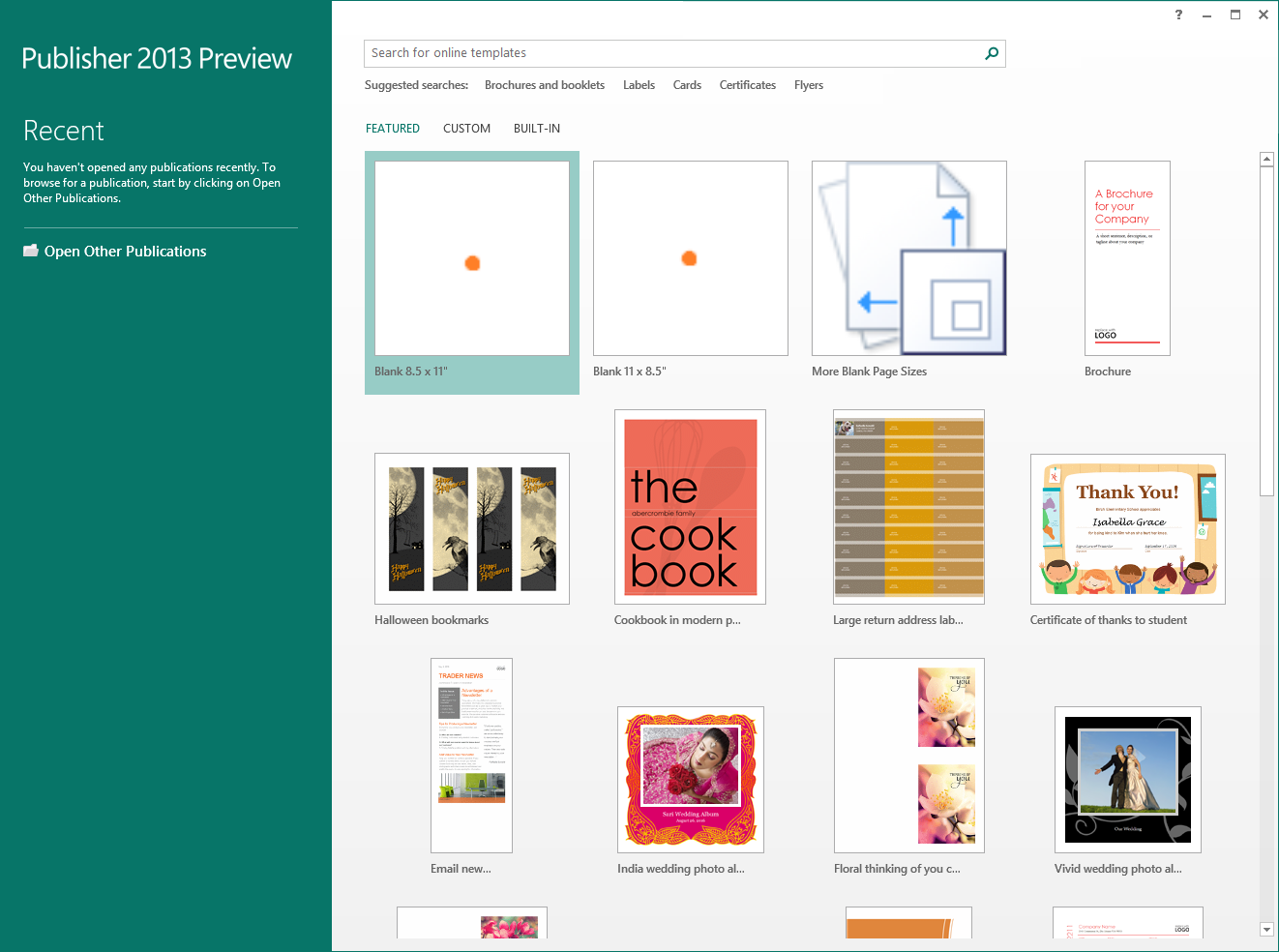
Microsoft Publisher can be easily used to create different publications, including business cards, greeting cards, flyers, posters, calendars, newsletters, brochures, and many more. To create a publication, launch the Microsoft Publisher application by double-clicking the icon on the desktop or finding it under the start menu. On the starter page, popular publication options like those listed above and templates are available for you to make your choice to get started. Follow the following steps to effectively use the application
1. Click on the publication type you want to create in the left column. A number of different templates for that particular publication type will become available. Go through the templates to find the template you want to use. For example, under ‘Business Card’ as the publication type, you can choose the ‘Accent Box Business Card.’ Select your template, then click on “Start Wizard” at the bottom right corner of the Catalog window to display your template in the main Publisher window.
2. Click on the ‘Next’ button in the left pane after starting the wizard for your Publisher template to format the document then follow the instructions provided by the Publisher wizard to create your document. After concluding the Publisher wizard, click on ‘Finish’ on the last tab to begin adding text and pictures to your document. To add text and pictures, click on the section of the document to which you want content added as the document will feature multiple frames, into which text or pictures can be added. In most cases, however, Publisher places example text and photos in each template to provide a guide on how to write and format your document.
NB: Note that you can add additional frames by clicking the ‘Insert’ button and selecting ‘Draw Text Box.’ Position your cursor where you want the top left corner of the frame to begin and then drag your cursor diagonally down and to the right until the frame is in the size desired. Click inside the frame to add text or image.
3. To insert images, position your cursor where you want the image added to your document then click on the ‘Insert’ button and select ‘Picture’ under the Illustrations group. This opens the ‘Insert Picture’ dialog box for you to select and add the image you want into your document. Crop to satisfaction and then save the document.
How to Get Free Trial
As mentioned above, Microsoft Publisher is not a stand-alone product as it is a component of the Microsoft Office suite. This means that it can not be installed alone and a free trial of the application would have to come along as an MS Office free trial. To get a free trial for MS Office, visit the free trial page of its website and sign up. When the trial expires, the Microsoft Publisher trial version can only be used to view .pub files.
Read Also: Amazon Prime: Free Trial, Reading, Movies, Music, Cost, How to Cancel
How to Get Templates
There are thousands of templates available with Microsoft Publisher that you can use to jump-start your publication. You further have the option of making a template from any publication by saving it as a publisher template file. If you are in need of more templates, many sites like StockLayouts.com give free, easy to customize layouts for users to use.
Popular Questions
How do I use Microsoft Publisher templates?
1. Open MS Publisher, or click File > New, then click on ‘My Templates’ before double-clicking the name of a template.
2. Make the changes that you want to the template and then click File > Save As.
3. Click Publisher Template in the save as type box and then type a new name and optional category for the template before ultimately saving.
How do I convert a Publisher document to Word?
1. Click the File menu, select ‘Export’ and then click ‘Publish HTML’.
2. Select a location to save the HTML document and its folders containing images and format information.
3. Launch Microsoft Word, click Open and select the saved HTML File.
4. Drag the images and text boxes as needed to reposition them in the document.