


Quick Answer
Dell Service Tag is a unique 7-character code found on all the Dell products that you buy. Mostly found at the side, back, or under dell products, it serves as the identifying number of the product for online support as well as any other thing that may be involved with the product.
Each computer that you buy is unique in a way because it carries a specific number that you will not find on any other one including those of the same model. With Dell, the number is referred to as the Dell Service Tag. The number is exclusive to your computer and it can serve for many things and also as the identifier of your computer.
The service tag is available on all Dell laptops, desktops, and all-in-one computers. While on your laptop you will find it at the bottom, you may find it underneath a flap under the laptop, and you will find it at the top of your CPU on desktops and sometimes, you will find it at the back close to the ports. For desktops that come with covers for the optical drives, the service tag will be found behind the cover while you will find it underneath ultrasmall form factor desktops. If you are using an all-in-one computer, the service tag will be at the back of your system.
What Is Dell Service Tag?
Dell Service tag is a unique alphanumeric character code that is used as the identifier of your Dell products (computers and laptops). Why the tag is very important is because, through it, you will get access to information about your device as well as get other personalized support options.
The tag contains 7 alphanumeric characters as against the Express Service Code which is the numeric version of the Service Tag. The Express Service Code is between 10 to 11 digits.
When you are contacting the Dell customer support rep, you will be asked to provide the service tag of your system because it is important to use in checking whatever you may need with the system including the hardware, configuration settings, and warranty.
How To Lookup And Check Your Tag Number
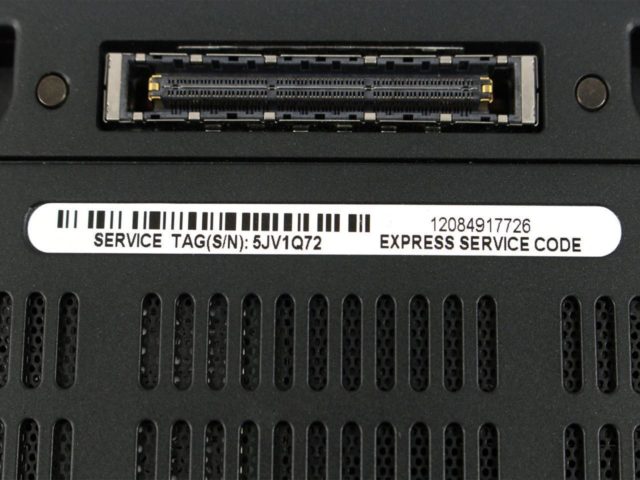
Apart from the bottom, side, or back of your computer where you can find the Dell service tag, there are other ways that you can find or look up for the number if it gets wiped off.
1. Through the Dell website
One of the best ways that you can check your Dell Service Tag is through the website of Dell.
- Using your Dell computer, simply go to the site and then you will see a field telling you to Enter a Dell Service Tag, Dell EMC Product ID, or Model.
- Click on the Detect PC button beside it. For some, what you will see is Detect Product.
- In the support page that will open next, you will find a seven-digit code at the top with a “Service Tag” heading. Apart from the service tag, you will also find the 11 digit Express Service code which you can also use for identifying your system via phone support.
2. In the BIOS
You can look for the Service tag of your computer in the BIOS of the system. To do this:
- Shut down your system completely.
- As it comes back on, tap the F2 key.
- In the BIOS, go to your System Information and there, you will find the service tag. However, because that process may be long for some people, you can also use the command prompt.
3. Command Prompt
- To open your command prompt, you may start by either tapping on the Windows Key and searching Command Prompt or open the Run command by holding down the Windows key and then press R.
- In the Run Command, type CMD and hit the Enter key.
- In the command prompt, type wmic bios get serialnumber and then hit on the enter key.
- You will find the code under the SerialNumber.
4. Through Terminal on Linux
If you are using Linux, what you will use in checking for it is the terminal.
- You can either use the Control + Alt + T to open the Terminal Window. You can also do that by double-clicking on the Terminal app icon.
- Type in sudo dmidecode -s system-serial-number and then hit the Enter key.
- The next thing you will need to do is to put in the administrator password and then hit on the Enter key. If it doesn’t appear as you type, you don’t need to worry.
- Under the field for your password, you will see the Service Tag.
The Use of the Service Tag
Because it identifies your computer uniquely from all others, the service tag is important if you need anything about your computer. For example, if you want to look for any information on your computer on the Dell Support site, having the code and inserting it may just be the easiest way to do that.
Some of the information about your computer that you can get using the tag include the device warranty information and its specific specs. More so, you can use it to check the components of your computer, the original configuration settings, as well as the current configuration which will analyze your system to tell you.
See Also: Garmin GPS: Truck, Hunting, Motorcycle Navigation, How To Update
Other Questions
How do I find my Dell serial number?
To find the serial number of your Dell computer, there are different ways to find it including the Command Prompt. To do this, open the Run Command by holding down the Windows key and then tap on R. In the Run Command, type CMD and then type wmic bios get serialnumber in the command prompt. Once you press the Enter key, the serial number will be displayed under the SerialNumber.
How do I find my Dell service tag?
While you can find the Service Tag on your computer by looking around it, there are other methods to find the code as shown above using the Command Prompt, BIOS, or through the Dell support page.
How can I get a service tag remotely?
If you are trying to get the service tag remotely or locally, all you will need to do is to launch the Command prompt and then type in wmic /user:administrator /node:remote-host bios get serialnumber. Your administrator password will be required. While everything will remain the same, you will replace remote-host with the name or IP address you are trying to get.
You can also try using this in the Command Prompt before pressing the Enter button: wmic csproduct get vendor,name,identifyingnumber.
