


Formerly known as ProNav, Garmin is a company that specializes in GPS technology for automotive and sports activities as well as indoor and outdoor purposes. To manage all its various devices, the company has come up with the Garmin Express which is a computer program through which you can connect your device.
In essence, the Garmin Express is a program that serves to help users of Garmin devices in managing and updating their GPS devices. With the software, you can also register your device and have your data backed up. Apart from that, one can download product manuals and install voices.
Some of the things you can do using the program include updating your maps, get chart updates, and sync with the Garmin connect so that you can easily upload your activities and wellness data.
How to Download Garmin Express
The Garmin Express software is available for both Windows and Mac Operating Systems. On Windows, it works with anything from Windows 7 upwards while for the Mac, it is compatible with OS X 10.11 or newer systems.
To download the software For Windows, here are the steps to follow:
- Go to the Garmin Express page via this link
- Select the program you want to download (Windows)
- If it doesn’t start automatically, click on restart and then Save.
- Next, click on Run.
- Accept the terms of agreement and make the settings you need.
- After this, you can decide to launch the software.
- After the installation is completed, you can now add your device using a USB cable or an ANT Stick.
- Once you connect a device, it will find it. Just select ADD device.
- With your program installed and your device added, click on Next to add a Nickname for the Device and then click yes or no to the next request followed by Finish.
If you decide to choose to check for updates and you find some, it is important to note that when the update has started, you do not unplug your device or interrupt the process as that may damage your device.
To add more devices, click on the home icon and you will be taken back. Here you can either select add device or click on any added device to see if there are available updates.
To download the software For Mac, here are the steps to follow:
- The first thing to do is to go to the Garmin Express download page as mentioned above
- You want to click on Download For Mac
- Go ahead and open the GarminExpressInstaller.dmg file.
- You will see an Install Garmin Express icon in a new window. Double click on it.
- Click on Continue, then Continue, and Continue again.
- Agree to the terms and click on Install.
- Give permission for it to be installed by putting in your Mac User Name and Password.
- Click on Install Software and that will be it. If the installation is done, your Garmin Express will open automatically.
How to Login
Before you can login and have your device registered, the first thing you will want to do is to sign up by following these steps:
- Go to http://my.garmin.com
- In the Garmin Account Sign In box, click on Create One to start your account creation.
- Complete the next stage by putting in your details and then agree to the terms of use.
- Click on Create Account.
- Now you can go on to complete other personalization and subscription processes.
To log in:
- Again, go to http://my.garmin.com
- Click on sign in and that is done.
How to fix Garmin Express if it is not working
Like other software programs, the Garmin Express is not immune to having some problems which may include things like failing to work. Here are some easy ways that you can have that fixed:
1st Method: Get Latest Version of Garmin Express
The first thing you should do before any other thing when your program refuses to start is to make sure that you have the latest version of the software installed on your computer.
See Also: Mapquest Driving Directions, Route Planner, Mileage, and Gas Calculator
In order to do this, go to Garmin’s website and download the latest version of the program and then reinstall it. Before then, ensure that you have fully removed the previous one you have installed on your computer as it could be the one causing the problem.
2nd Method: Try Installing Through the Compatibility Mode
If after installing the latest version of the program and it fails to work, the simple explanation could be that it is not compatible with the Windows version you are running as such, you have to try installing it in a compatibility mode.
- Uninstall the program you have installed completely from your computer.
2. Download the executable file in a location that you can easily access.
3. Right-click on the file and select Properties
4. When you have the Properties open, select the Compatibility tab and then check the box for “Run this program in compatibility mode for:”
5. Select a Windows version from the options provided and save it.
6. Again, right-click on the file and select Run as administrator.
7. Restart your computer after installing the file and then launch the application.
3rd Method: Install Latest Windows Updates
The issue that may be causing this could be that you have not updated your windows. Each window update is designed to fix some bugs discovered. The bug could lead to many things including your errors with various installed programs such as Garmin Express. Therefore, you will want to update your windows if this program is not working.
- Click on the start menu on your computer and then click on the settings icon.
- Select Windows and Security
- You will be taken to Windows Update page. Click on Check for update. This will be done automatically and the updates would be installed
- Once that is set, simply restart your computer and that will be all.
4th Method: Delete Garmin Express Configuration Files
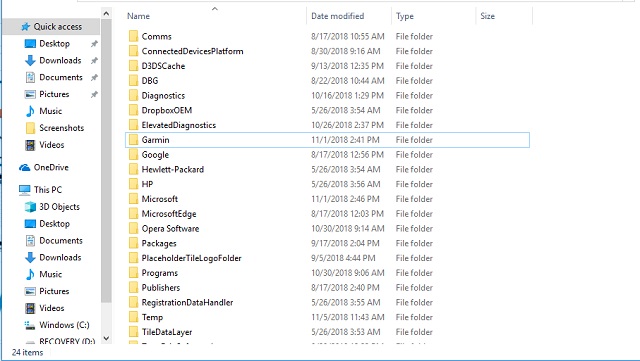
The operations of your program are tied to the configuration files as such once there is any problem with it, your program may not start. The only way out for you is to simply delete the files. Here are the steps to take:
- Open your Run Command by pressing Windows and R keys (Win + R)
- Type in the command; “%localappdata%” to open your files and then hit on the Enter key.
- Look for the Garmin folder, right-click on it and then delete the files.
- Once you are done with this, simply restart your computer and try launching the program again. If this doesn’t work, you may as well consider uninstalling it completely.
